Showing posts with label DBeaver. Show all posts

16/07/2025

PostgreSQL: Basic Operations using DBeaver - Part 1

Once you restore a database and create a connection to it, next thing you want to do is have a look at the table structure and data inside those tables.

I'm going to use DBeaver for my database access/operations. Because it is very sophisticated tool, similar to SSMS for SQL server, but I think it has more options.

Let's take a look at how these basic operations are carried out with help of DBeaver tool.


In the "Database Navigator" panel of DBeaver, expand the database you want to access. Under database node, you will find "Schema" node (see picture above). Inside this node you will find all available schemas, in most cases it will be under public schema.
Under the schema, you will find usual database objects such as Tables, Views, Functions and etc.

If you want to see data in table, you can double click on it or you can right click and select "View Table" from the context menu.

This will open table in right hand side pane.


By default this shows first 200 rows in the table, with all columns in a grid view. If you want a text view (in case need to copy records into some where), you can switch to text view.


If you click on arrow icon on a column (in grid view), you get sorting and filtering options for that column.


Filter bar at the top shows current filters:


You can clear them all by clicking on eraser like icon the right side of the filter bar. You can further configure your filters by clicking "filter" icon on the right side.

Bottom bar shows very helpful buttons to interact with the table data.


There are buttons to add/delete/edit records in the table. Then you can export data in table by pressing "Export data" button. Next it shows number of records currently in the grid, followed by total number of records. However, when you initially load the table, it just shows 200+, because it has not counted all rows. If you want to know the total count of records you can click on the button in between two counts.

As you can see DBeaver provide rich set of GUI features to interact with data in your database. Of course you do all of these using plain SQL also.

We will see further feature in another article.


30/06/2025

PostgreSQL - Restoring a database

Recent days I was following Brent Ozar's site on postgresql - smart postgres.

In his articles and classes he use copy of stackoverflow database (postgres version). There fore I wanted to restore it on my test postgres server.

Here is how I did it.

Download the Dump

First I downloaded the stackoverflow data dump (which was created by Brent) using links in his site. See this page for links to data dump torrent and instructions on restoring and configuring it. 

I choose small version of the data dump (which expand to 6GB, but torrent is about 1GB).

Create a Database

In this scenario, I have used DBeaver to help me with database. In DBeaver, created a new database connection.


See above screenshot for settings I have used. I have kept most settings default, but made sure to tick "Show all databases" tick box, this allows me to see all database in addition to the one you specified in the connection.

Once connection is created, select the database node and right click on it. Select "Create New Database" menu item.


Create database dialog appear and enter the name "stackoverflow" in the database name box. Keep all other settings default and press ok.

Your new database will appear under the database node:


Restore

Right click on the newly created database and select Tools > Restore


This will popup the restore dialog. In restore dialog, browse to the downloaded data dump (.sql) file and make sure to "Discard object owners" tick box.

This will make sure some errors are by passed. Due to the way dump was created there are some mis match of owners. This is explained in Brent's page, but he has advice to ignore them, by ticking above box those errors a skipped,


Then press on "Start" button.

Confirm your request:


Progress will appear on the dialog box and depending on the power of your machine it will take about 2-10 minutes to restore.


Once finished, press cancel on the dialog.

Now you will be able to see stack overflow tables on the database:


09/04/2025

DBeaver Series - Part 1 - Installing and Connecting to Postgres

One of the common complain when you move to open source database is not having proper database management tool like SSMS for SQL server.

These days I'm trying few with Postgres databases. One of them is DBeaver.

DBeaver is a open source universal database management tool (as they call it). It can handle other databases such as MySQL, MariaDB and even commercial products like SQL Server and Oracle.

It has two versions, free community version and pro version. Pro version has lot of enterprise level features such as better security and AI related features. It also provide you with technical support. However for pro edition you have to pay fee like $25 per month or like $500 per yearly (if you choose Ultimate edition). 

You can compare editions here -> https://dbeaver.com/edition/

DBeaver is a desktop application, but it also have a web version and it is called CloudBeaver.

CloudBeaver is a web server which you need to install and configure using the source code they provide. However, demo can be found here -> https://demo.cloudbeaver.io/#/

DBeaver is currently on version 25.0.2.

DBeaver can be download from here -> https://dbeaver.io/download/

For my practices, I'm ok with free community version.

On the installation page, you have the option of choosing windows installer, zip or install using Microsoft Store. Though installation file is 121 Mb, I had tough time downloading it and it was showing over 1h or download time. So I have opted to go with Microsoft store one and seems much faster. It downloaded and installed within 2 minutes.

Once you installed, you are presented with UI like below:


First question it asked me was, do I want to create a simple database to explore features of the DBeaver. Why not? so I said yes.

When I press yes, not sure where or what type of database it created. I was presented with choose connection dialog box.


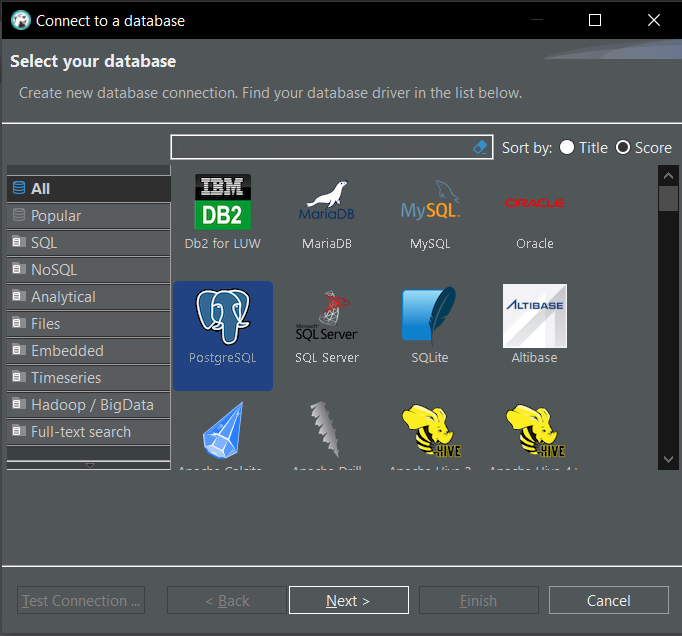
I have clicked on PostgreSQL and clicked "Next"

Kept all default value from next dialog box (I have already installed Postgres Database on this server with all default values):


Then clicked on "Finished"

After clicking on "Finished" I could see 2 database connections on the "Navigator" pane.


That's when I realized that, sample database was created using SQLite. When click on the "postgres" node first time, it has asked me to download driver files.


I have clicked on "Download" and it has started downloading and installing drivers for postgres. It took about 12 minutes to complete the driver download and installation.

After installation, I have presented with following error:


That's when I realized, I haven't input the password when creating the connection (with all defaults). So I edited the connection (right click -> Choose "Edit Connection"), and entered the password for the postgres server in the box shown below:


Then it was all ok. I can see my postgres database, but I cannot see the custom database I have already created on that server. Not quite sure why. I will have to investigate this.


Same as postgres node, if you click on SQLite node, it will also ask you download the required driver files (first time only).

I will continue to explore this and will blog about it if there anything interesting.

SQL Server Performance Tuning Excersises - 1

Couple of weeks ago, I blogged about how I tried to use AI (Claude) to teach me performance tuning. You can read it here . Starting from thi...